
Welcome to our online support centre. Search for answers using the search box below, or create a support ticket if you cannot find your answer.
Creating Record Automations
Key Points
Record Automations monitor form data and trigger actions automatically.
They are commonly used for expiry reminders, status changes, and notifications.
Automations are built using:
Trigger (when it runs)
Conditions (when it should run)
Actions (what it does)
Schedule-based triggers are ideal for expiry date alerts.
Notifications can be sent via email, SMS, or internal messages.
Accessing Record Automations
To create a Record Automation:
-
Navigate to the Automations section from the left-hand menu.
-
Click the Plus (+) button in the top-right corner.

This opens the automation setup screen.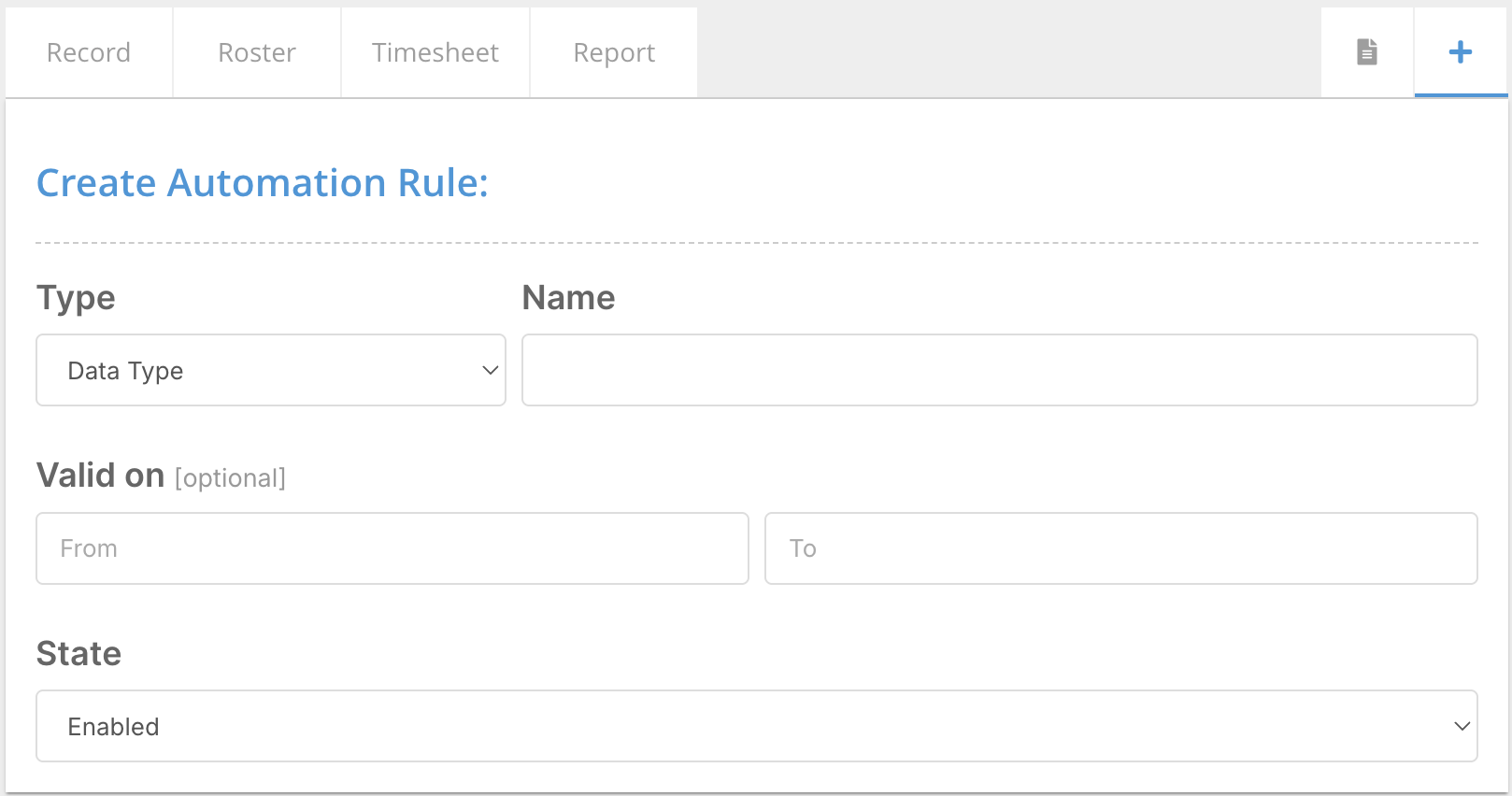
Access to this feature is permission-based.
If you cannot access this section, contact your administrator.
Selecting Automation Type
When creating a new automation:
Select Record Automation as the data type.
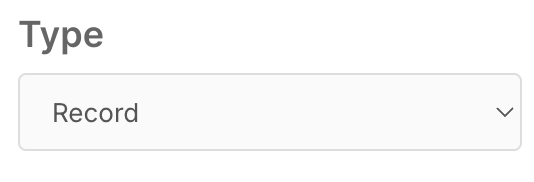
Record automations are used to monitor data within forms, such as:
Staff records
Participant records
Compliance forms
Naming the Automation
Enter a clear and descriptive name.
Example:
Police Check Expiry Reminder
A good naming convention includes:
Form name
Trigger type or purpose
This makes it easier to manage automations later.
Setting Active Status
You can choose whether the automation is:
Enabled
Disabled
Enabled automations will run immediately based on their trigger conditions.

You can also optionally define:
Valid from date
Valid to date
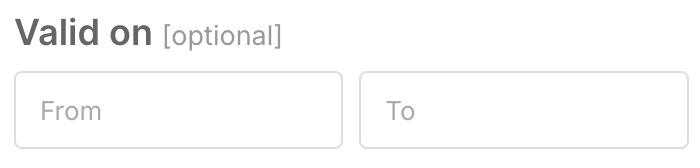
This controls when the automation is active.
Selecting the Target Form (Where)
Choose the form the automation will monitor.
Example:
Police Check Form

The automation will run whenever conditions are met within this form.
Configuring the Trigger
Triggers define when the automation runs.
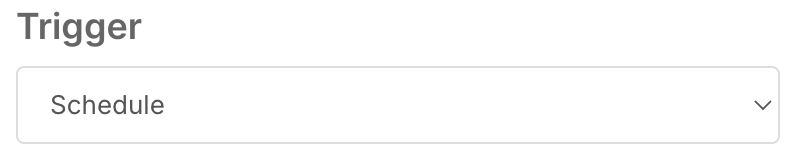
Available trigger types include:
Schedule
New or Updated Record
Updated Record
Deleted Record
Change Status
Locked or Unlocked Record
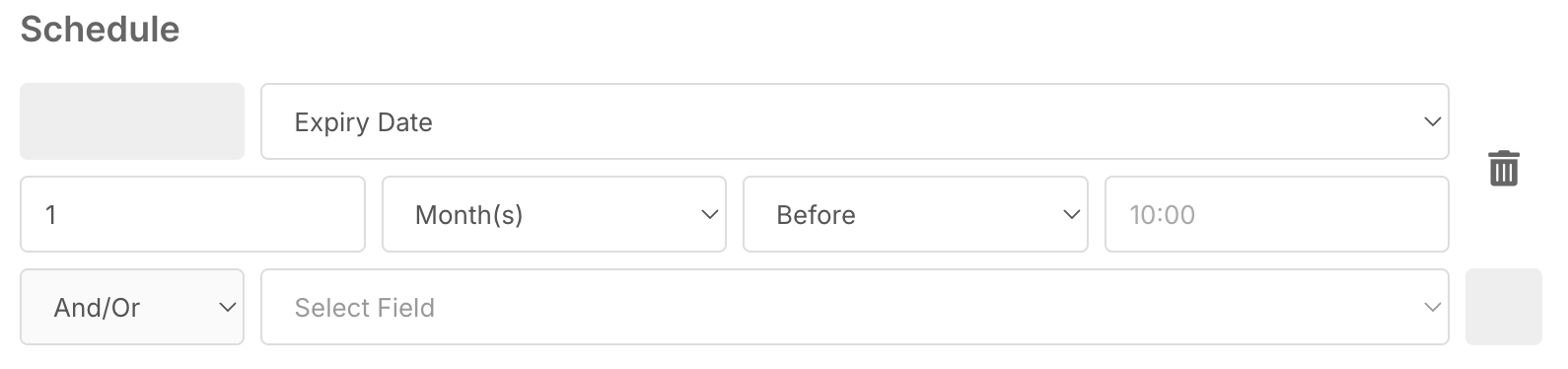
Schedule Trigger (Expiry-Based)
For expiry reminders, select:
Schedule
Then:
Choose the relevant date field (e.g., Expiry Date)
Define the trigger timing
Example:
1 month before expiry date
This ensures notifications are sent before the record expires.
Adding Conditions (If Options)
Conditions control when the automation should run.
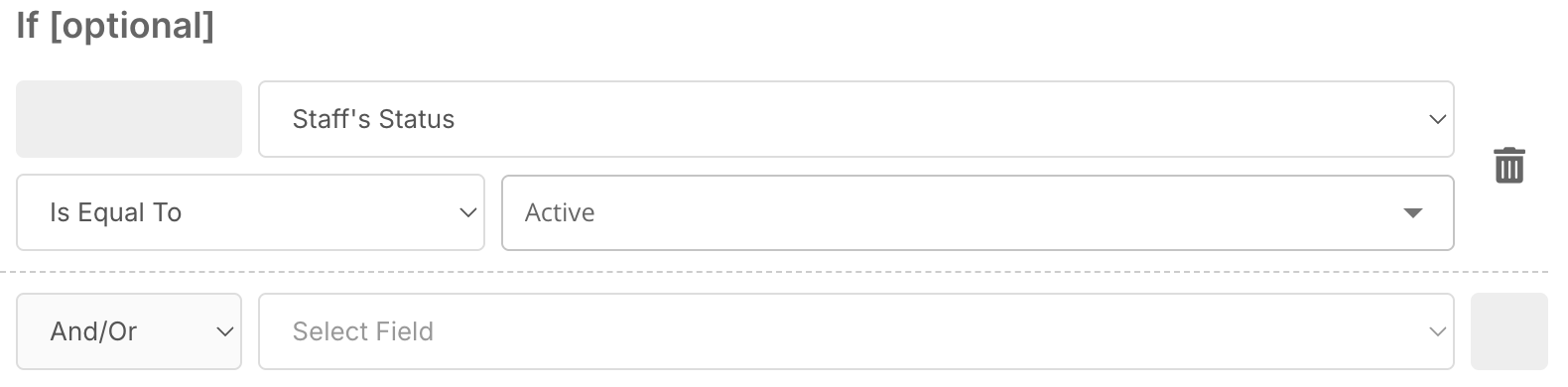
Example condition:
Staff Status = Active
This ensures:
Inactive staff do not receive notifications
Only relevant records trigger the automation
Conditions help reduce unnecessary alerts and improve accuracy.
Defining Actions (Do Options)
Actions define what happens when the automation runs.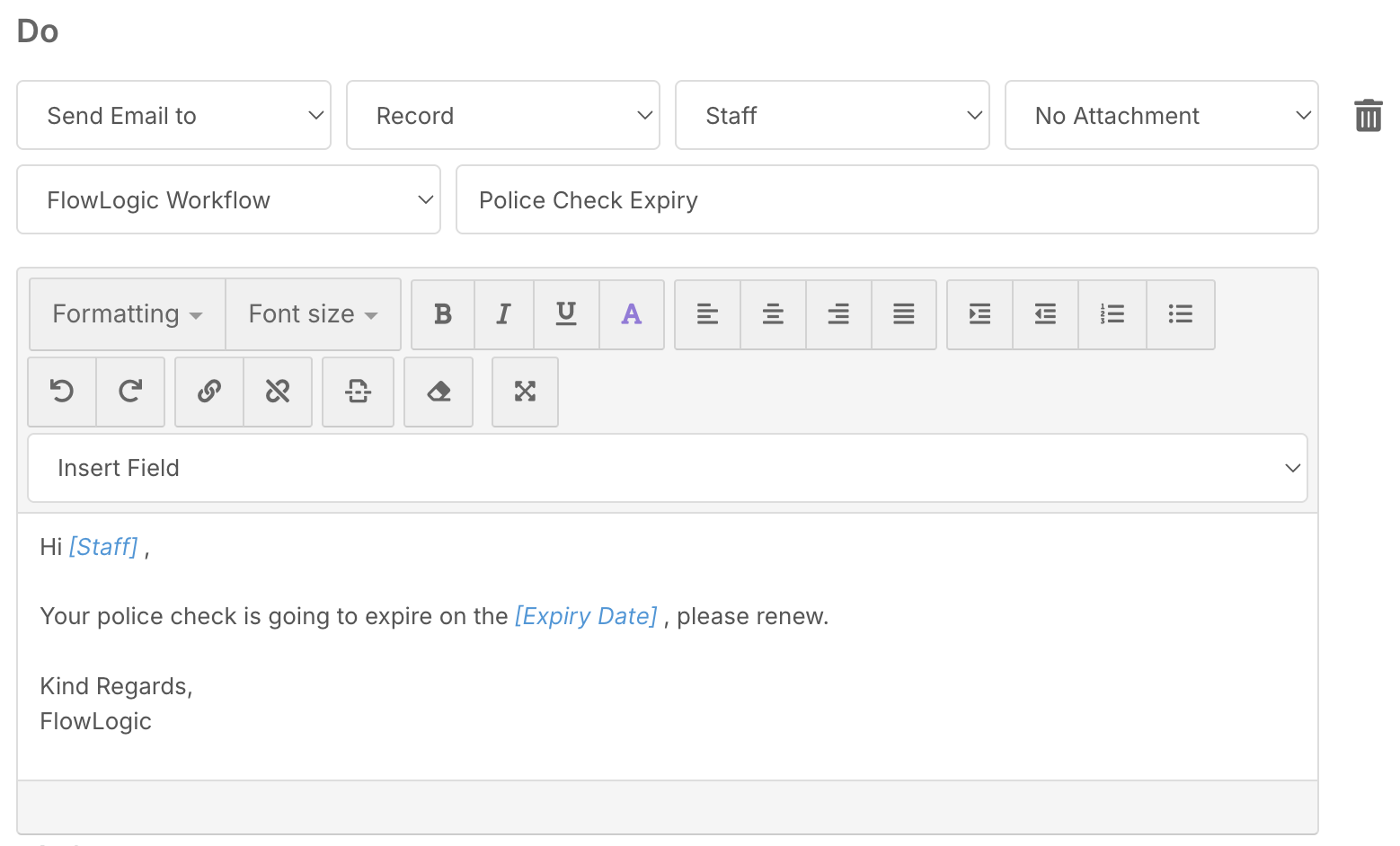
Common actions include:
Send Email
Send SMS
Send Internal Notification
More advanced actions may include system updates or user changes.
Example: Send Email
To send an email:
-
Select Send Email.
-
Choose the recipient.
Common recipient options include:
Record Holder
Record Creator
Record Editor
Specific users or groups
Configuring the Notification
Recipient
Select who will receive the notification.
Example:
Record Holder (staff member)
Sender
Choose who the message is sent from:
A specific staff member
FlowLogic system
Subject Line
Create a clear subject.
Example:
Your Police Check is Expiring
Message Content
Write the message body.
You can insert dynamic fields such as:
Staff Name
Expiry Date
Form details
Example message:
Hi [Staff Name],
Your Police Check is due to expire on [Expiry Date].
Please update your details as soon as possible.
Dynamic fields personalise the message and improve engagement.
Attachments (Optional)
You can attach:
PDF versions of records
CSV exports
This is useful for compliance or documentation workflows.
Saving the Automation
Once all settings are complete:
-
Review all fields carefully
-
Click Save
The automation will now appear in the Automations list.
Managing the Automation
After creation, you can:
Edit the automation
Disable or enable it
View logs
Apply it to historical records
This allows ongoing maintenance and flexibility as requirements change.
Best Practice Recommendations
✔ Use clear and consistent naming conventions
✔ Use schedule triggers for expiry-based alerts
✔ Add conditions to avoid unnecessary notifications
✔ Test automations before applying them broadly
✔ Keep messages clear and professional
✔ Avoid overloading users with multiple alerts
Summary
Record Automations in FlowLogic allow you to monitor form data and trigger notifications automatically.
By configuring triggers, conditions, and actions, you can automate key workflows such as compliance tracking and expiry reminders.
When used effectively, record automations help improve efficiency, accuracy, and communication across your organisation.