
Welcome to our online support centre. Search for answers using the search box below, or create a support ticket if you cannot find your answer.
Workforce Mobile App – Getting Started
Downloading the App
Before you begin, make sure you have downloaded the FlowLogic app onto your phone. Once it’s installed, open it, and you’ll see a login screen. Tap the Login button at the bottom of the screen to get started.
Logging In
When you tap Login, the app will ask permission to open a secure browser window inside the app. This is normal – tap Continue to proceed. You will not be taken to an external website.
You’ll then be asked to enter your FlowLogic URL or FlowLogic company name. This is the web address your organisation uses to access FlowLogic, and it usually looks something like ‘yourorganisationname’.flowlogic.com.au. If you’re not sure what your URL is, ask your manager or supervisor before continuing. Type it in carefully then select the country you are working in and tap Verify, then wait a moment for the system to confirm it.
Once verified, enter the same username and password you use when accessing FlowLogic on a computer and tap Continue.
If your account has two-factor authentication enabled, you’ll be asked to complete a verification step at this point. Depending on how your account is set up, this might be:
- A code sent to your email
- A text message to your phone
- A code from an authenticator app
Enter the code when prompted and continue.
Setting Up Your PIN
The first time you log in, the app will ask you to set up a six-digit PIN. Your PIN is used every time you open the app after that, replacing your full password and making login faster. It also helps keep your account secure if someone else picks up your phone.

To set up your PIN:
- Tap Yes, set up PIN code when prompted
- Enter a six-digit number of your choice – avoid easy patterns like 123456 or your birthday
- Enter it a second time to confirm
- Tap Continue
From this point on, you’ll use your PIN to open the app each day.
Your Roster
After logging in you’ll land on the main roster screen. This is your home screen and shows all of your upcoming shifts. At the top you’ll see your name and how many shifts you have scheduled for today.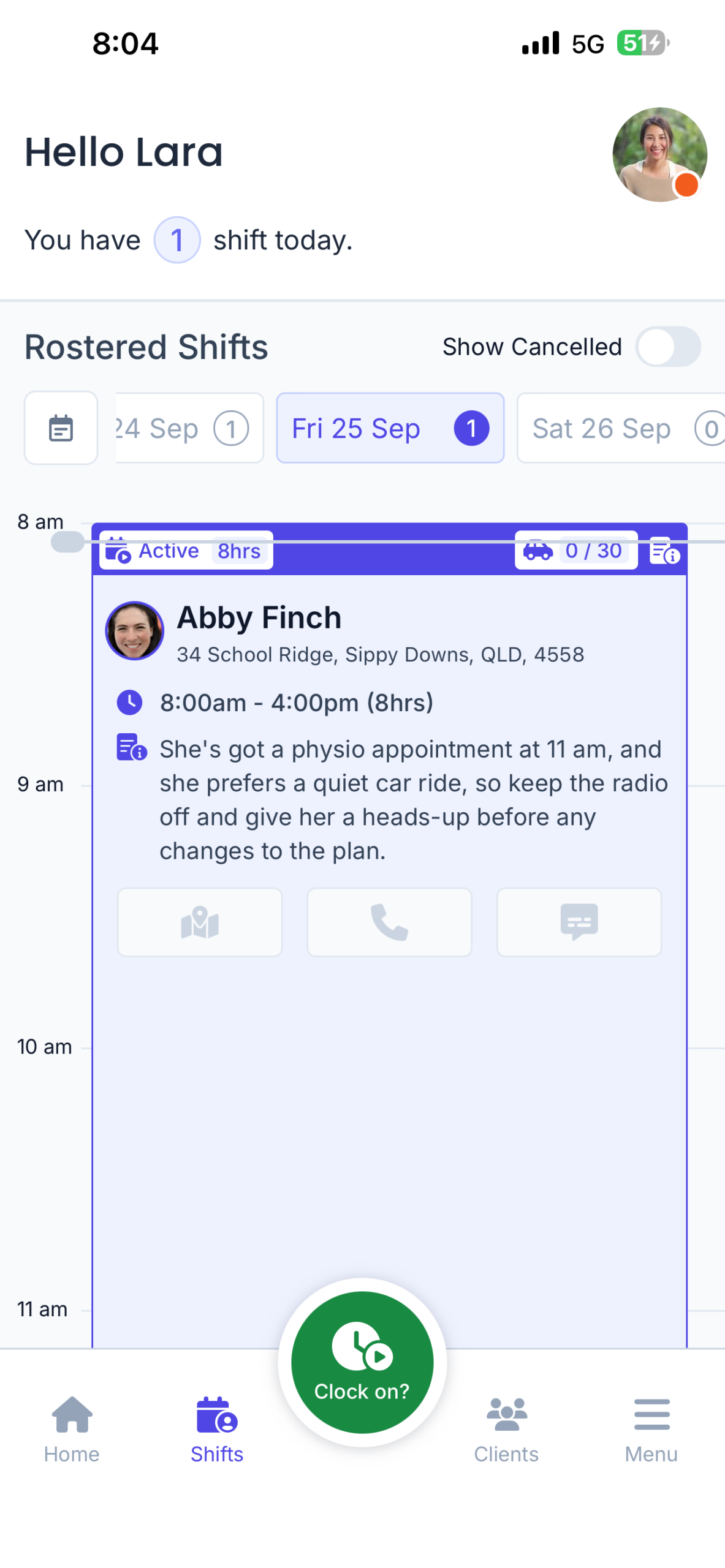
To navigate your roster:
- Scroll up and down to see all shifts on a given day
- Swipe left or right to move between different days
- Tap the date at the top to jump to a specific date
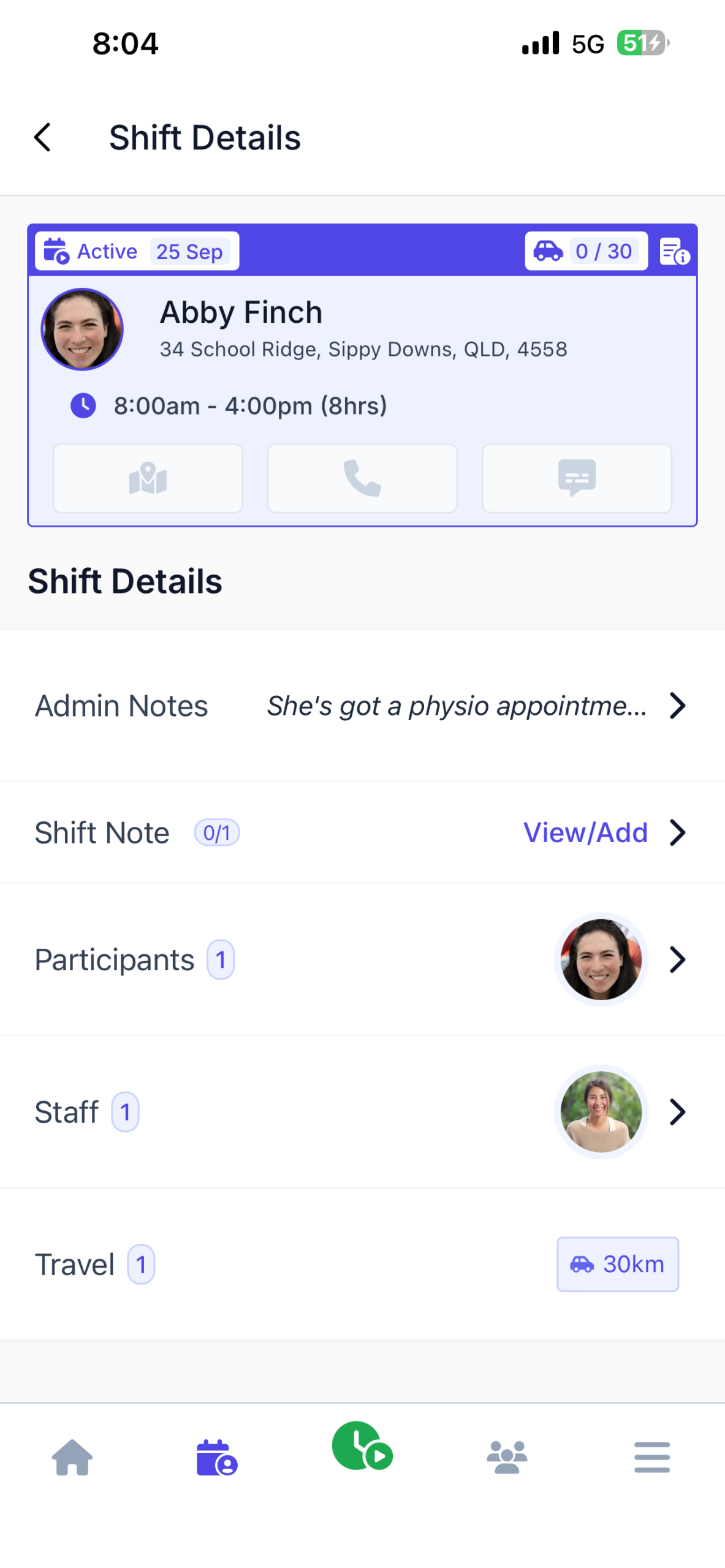
Tap any shift to open it and see the full details, including:
- The participant’s name
- The date, start and finish times, and total hours
- Any travel or transport included
- Admin notes left by your coordinator
- Other staff members rostered on the same shift
If there are multiple participants on a shift, tap their names to cycle through each one.
Your Profile and Settings
Tap your initials in the top-right corner of the screen to access your personal settings. From here you can:
- Update your password
- Inbox Messages
- Timesheets
- Leave Requests
- Change your PIN
- Manage whether the app can access your location
- Log out of the app
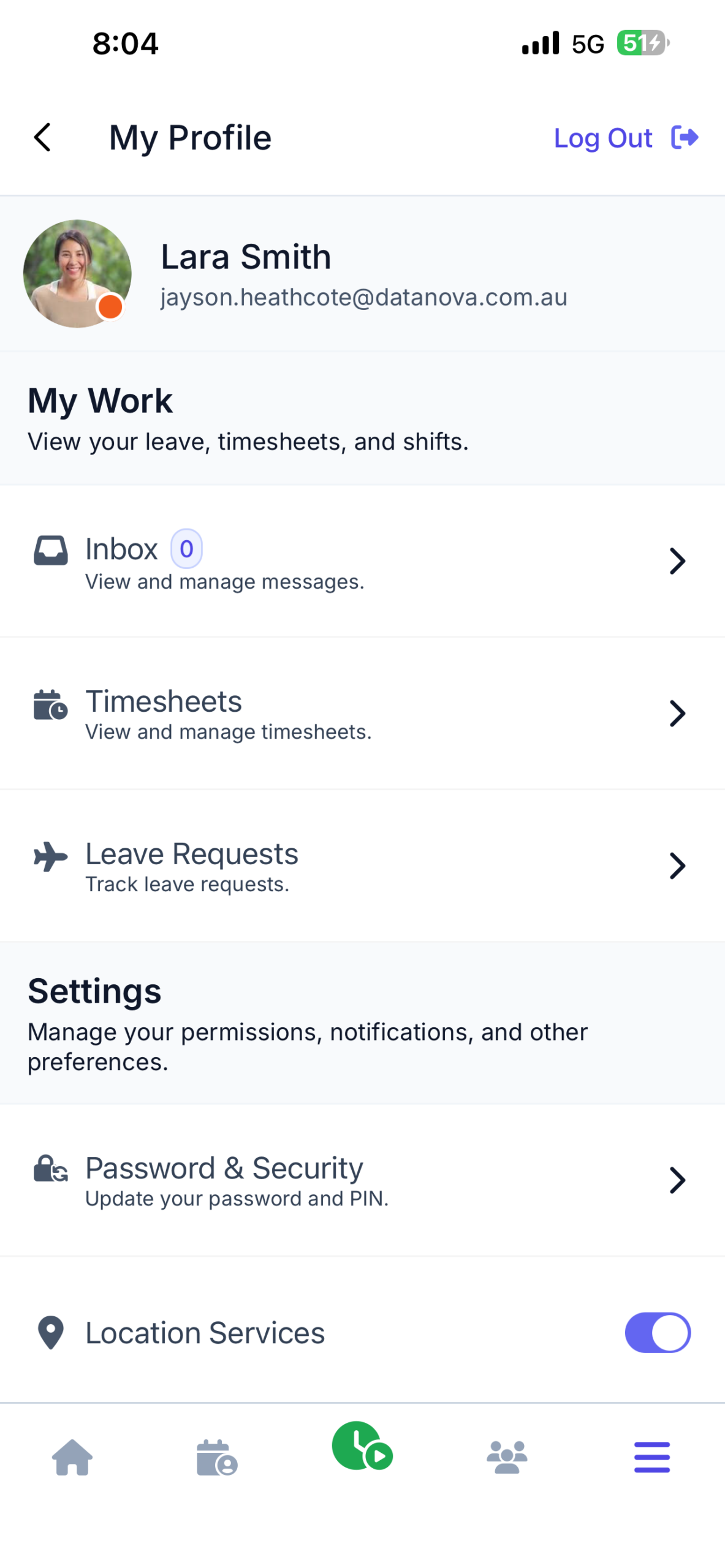
Keep this area in mind if you ever need to reset your PIN or update your password.
The Menu
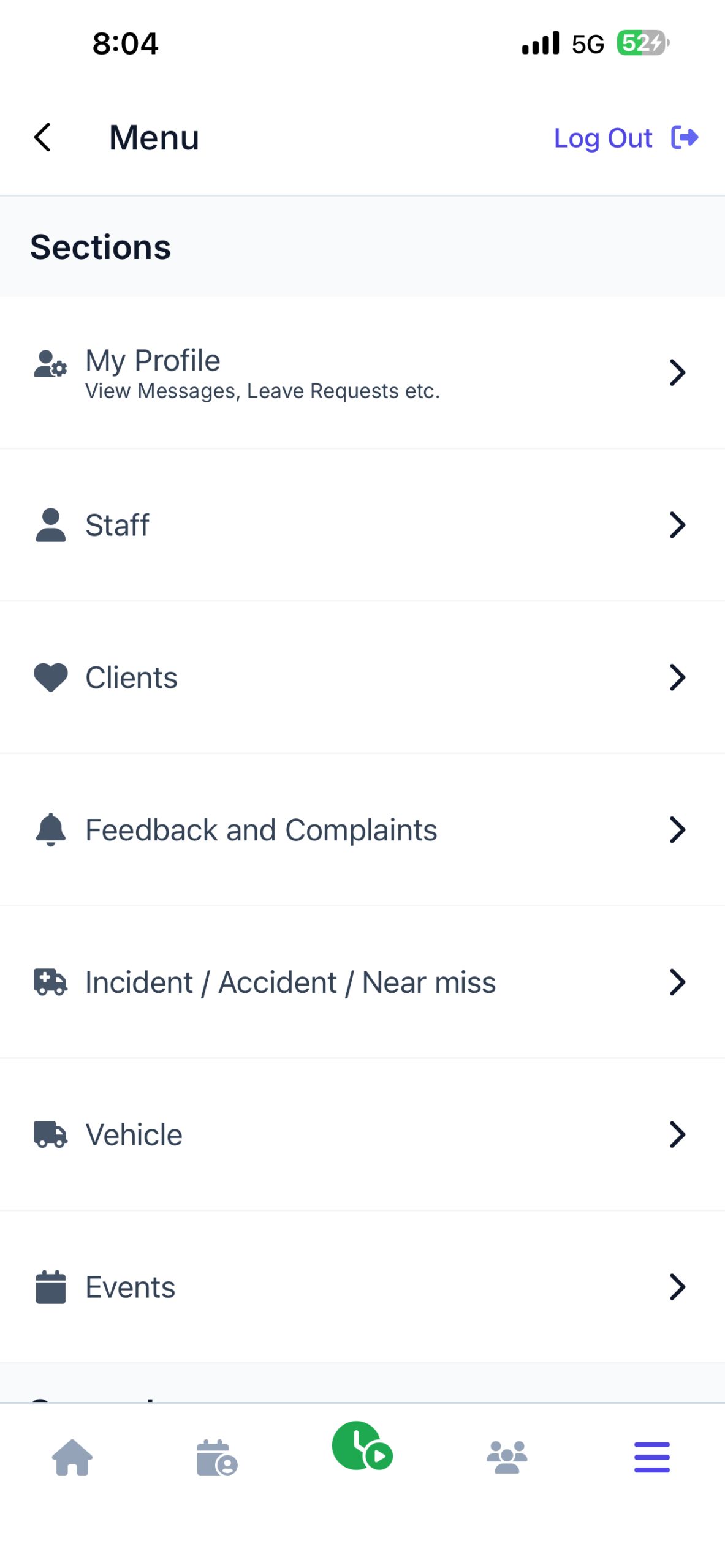
Tap the menu button along the bottom of the screen to see more options, including:
- Your staff profile
- Staff
- Clients
- Incidents
Clocking On for a Shift
When you’re ready to start your shift:
- Tap the Clock On button in the bottom navigation bar
- Read through the readiness questions on screen – these may ask whether you are fit for work and ready to begin
- Confirm your answers to each question
- Once complete, you’ll be clocked on and your shift will begin

You can then close the app or lock your phone. You don’t need to keep the app open while you’re working.
Clocking Off at the End of Your Shift
When your shift is finished:
- Open the app and tap the Clock Off button
- Read through the end-of-shift questions – these may ask whether you’ve reported any incidents and whether you’ve completed all tasks for the shift
- Answer each question, then tap Yes, Clock Off to finalise

Submitting Your Timesheet
After clocking off, the app will automatically open a timesheet page for you to complete. Fill in all relevant details, which may include:
- Breaks taken during your shift
- Wake-ups for overnight shifts
- Any additional travel
- Notes relevant to the shift

Once everything is filled in, tap Save and then Submit to complete your timesheet. Your shift is then fully closed off.
If you’re unsure about anything in the app, speak to your manager or coordinator before your next shift. You can also use the Feedback button in the menu to flag any issues directly with the FlowLogic team.