
Welcome to our Support Portal. Search for answers using the search box below, or create a support ticket if you cannot find your answer.
Accept and Reject Shifts
Key Points
FlowLogic allows organisations to enable Accept and Reject shift functionality for staff.
This feature is commonly used for casual or flexible workers.
Staff can accept or decline shifts directly from their roster.
Accepted shifts are confirmed and locked in, while rejected shifts return to the Open Shift pool.
Shifts can automatically accept by default if they occur within a configured timeframe.
Enabling Accept and Reject Shifts
FlowLogic allows organisations to enable the Accept and Reject shift feature for staff.
This feature is particularly useful for:
Casual employees
Relief staff
Staff picking up additional shifts
Flexible rostering environments
When enabled, staff can accept or decline assigned shifts before they are confirmed.
Understanding Shift Status Indicators
Different colours and statuses on the roster indicate whether a shift has been accepted, declined, or is still pending.
Accepted and Accepted by Default
Shifts displayed in grey have been accepted automatically by the system.
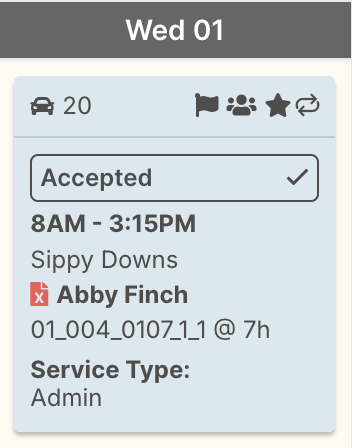
FlowLogic automatically accepts shifts that are scheduled within 24 hours of the shift start time.
This ensures last-minute shifts are confirmed without requiring staff action.
The user has accepted shifts displayed in green.
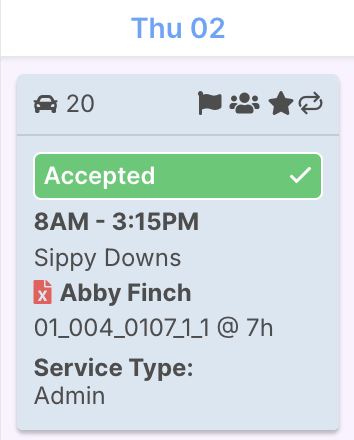
Pending Acceptance
Shifts that have not yet been accepted remain pending.

Staff will see the option to accept or reject these shifts from their roster.
These shifts remain unconfirmed until the staff member takes action.
Rejected Shifts
If a staff member rejects a shift, it will move to the Open Shift section.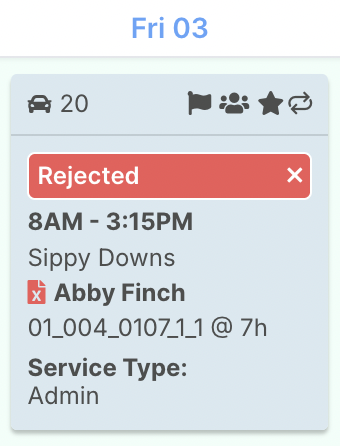
Open shifts are available for other staff to pick up.
This helps managers quickly identify shifts that require coverage.
Accepting a Shift (Staff View)
When staff view their roster, they will see assigned shifts with options to:

Accept
Reject
To accept a shift:
Open the staff roster.
Locate the shift.
Click Accept.
Once accepted:
The shift will display green on the roster.
The shift is now confirmed and locked in.
Managers can immediately see that the shift has been confirmed.
Rejecting a Shift
If a staff member cannot work the shift, they can reject it.

To reject a shift:
Open the shift from the staff roster.
Select Reject.
Once rejected:
The shift disappears from the staff member’s roster.
The shift moves into the Open Shift section.
This allows managers or other staff to pick up the available shift.
Changing a Decision
Staff can change their decision after accepting a shift if needed.
For example:
A staff member may initially accept a shift but later decline it.
When declined:
The shift will again move to the Open Shift section.
Managers will see the change reflected in the admin roster.
Admin View of Accepted Shifts
From the admin roster view, accepted shifts appear green.
This provides a clear visual indication that:
The staff member has confirmed the shift.
The shift is covered.
Managers can quickly identify:
Confirmed shifts
Pending shifts
Open shifts needing coverage
This improves visibility and helps manage staffing levels more efficiently.
Adjusting Auto-Accept Timing
FlowLogic allows organisations to configure the auto-accept timeframe.
By default, shifts scheduled within 24 hours of the start time are automatically accepted.
However, this setting can be adjusted to suit organisational needs.
Changing this setting allows organisations to:
Confirm shifts earlier
Give staff more time to accept shifts
Control how quickly shifts are locked in
This flexibility supports different rostering styles.
Summary
The Accept and Reject shift feature in FlowLogic allows staff to confirm or decline rostered shifts before they are finalised.
This functionality helps organisations manage flexible staffing environments by allowing shifts to be:
Accepted and confirmed
Rejected and returned to the open shift pool
Automatically accepted when approaching the shift start time
Using this feature effectively helps managers maintain shift coverage, improve roster transparency, and ensure staffing requirements are met.