
Welcome to our Support Portal. Search for answers using the search box below, or create a support ticket if you cannot find your answer.
Area Permissions
Key Points
-
Areas help organise records and control user access.
-
Areas can represent:
-
Physical locations
-
Departments
-
Service types
-
Funding streams
-
Regions or states
-
-
Users only see records within the areas they are assigned to.
-
Areas are a top-level access control tool.
-
Regions group multiple areas together.
-
Areas can also support rostering, messaging, and payroll functions.
What Are Areas?
Areas are used to:
-
Organise records
-
Control which users can access specific data
-
Structure your system by region or team
For example:
-
Queensland staff can see Queensland records
-
New South Wales staff can see NSW records
Areas help maintain privacy and clarity across large organisations.
Accessing Area Management
To manage Areas:
-
Go to the System Menu (top right-hand corner)
-
Select Areas
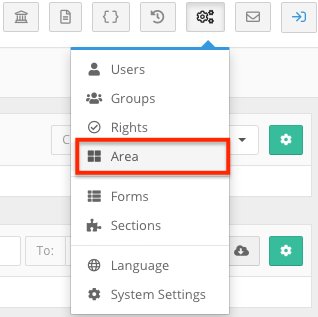
This opens the Site / Area Management page.
Here you can:
-
View existing areas
-
Create new areas
-
Edit existing areas
-
Create and manage regions
What Are Regions?
Regions are broader categories that group multiple areas.
They are mainly used to:
-
Categorise different site locations
-
Provide higher-level structure
To create a new region:
-
Click Add New Region
-
Enter the required details
-
Save
Regions help organise areas but do not directly control permissions.

Creating a New Area
Step 1 – Click Add New Area
Select Add New Area from the Area Management screen.
You will be taken to the Area Details page.

Step 2 – Enter Area Details
Complete the following fields:
-
Region – Select the appropriate region
-
Area Name – This appears on records
-
Description – Optional (can include address or details)
-
Virtual Area – Tick if not a physical location
-
Active / Archived – Areas can be deactivated if no longer needed
-
Messenger Recipient – Allows area to receive messages
-
Show/Hide Message Source – Control message visibility

Step 3 – Add Financial Codes (Optional)
You can also add:
-
Account Codes
-
Export Codes (e.g., for Xero integration)

These assist with:
-
Timesheet exports
-
Invoice tracking
-
Financial reporting
Step 4 – Assign Users
Assign users to the area.
This determines who can access records within that area.
⚠ Important:
If a record is assigned to an area with no users assigned, no one will be able to see it.

Applying Areas to Records
After creating an area, you can:
-
Open a staff or participant record
-
Assign the record to the new area
-
Confirm visibility is working correctly

This ensures permissions are functioning as intended.
How Areas Can Be Structured
There is no single correct way to structure areas.
Common setups include:
-
By physical office location
-
By state or region
-
By department
-
By funding stream
-
By service type
The key is to:
-
Keep the structure simple
-
Stay consistent
-
Make it easy for staff to understand
Areas in Other Parts of FlowLogic
Areas are also used in:
Roster
-
Assign shifts by area

-
Apply public holidays to specific regions

Messaging
-
Control which site messages are sent to

Payroll & Finance
-
Support export codes and financial workflows

This allows location-based scheduling and payroll adjustments.
Site Management Overview
The Site Management tool allows you to:
-
Create Areas (Sites)
-
Edit Areas
-
Manage regions
-
Assign users
When creating an Area:
-
Select the region
-
Enter the site name
-
Decide if it is virtual or physical
-
Add description or address
-
Add export codes (if required)
-
Assign users
Sites can be:
-
Active
-
Archived (if no longer in use)
Best Practice Recommendation
While you can create as many areas and regions as needed, it’s often best to:
-
Keep the structure simple
-
Avoid over-complicating your setup
-
Use other permission tools where appropriate
Areas should primarily be used for high-level organisation and access control.
Outcome
You now understand:
✔ What Areas are and how they work
✔ How to create and manage Areas
✔ The purpose of Regions
✔ How to assign users to Areas
✔ How Areas impact permissions and visibility
✔ How Areas integrate with rostering and finance
Areas are a powerful way to organise your system, protect data, and ensure staff only access what is relevant to their role.