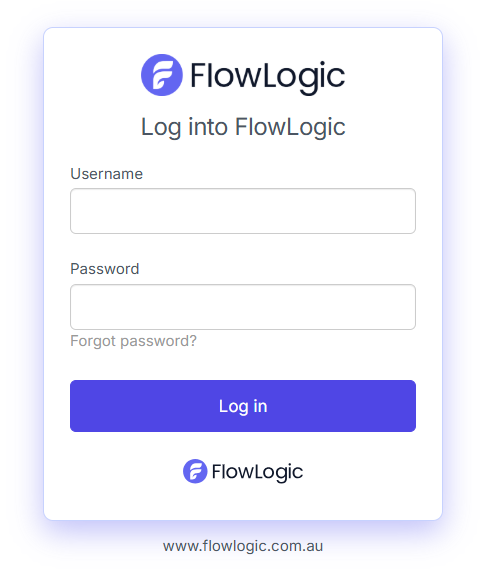
Type in the username provided to you (Most commonly firstname.lastname), along with the password provided.
Click “Sign in”
Reset Password
If you have forgotten your password to FlowLogic, you can reset it by clicking “Forgot your password?” and following the prompts.
More Information on resetting your password can be found here.
2FA Authentication
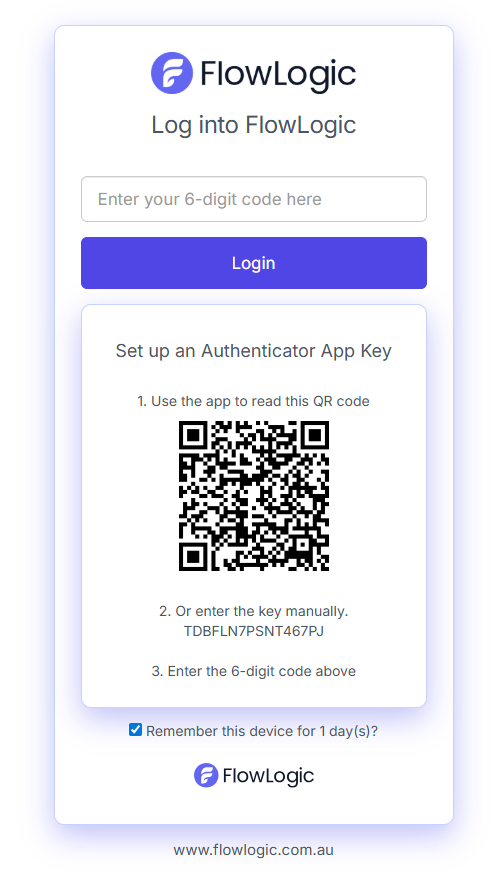
Depending on the Two Factor Authentication (2FA or MFA) method implemented on your system, after a successful username and password entry you will then be prompted to enter a 6 digit code to further authenticate yourself to the system. Enter the 6 digit code in the box provided an click “Please enter your six digit code”
You can also select the option for FlowLogic to remember your 2FA Authentication for a pre-set number of days, which may vary depending on the security settings specific for your organisation. Place a tick in the box to enable this.
More Information on the 2FA implementation in FlowLogic in can be found here.