
Welcome to our Support Portal. Search for answers using the search box below, or create a support ticket if you cannot find your answer.
Permissions Overview
Key Points
Permissions in FlowLogic are highly configurable.
Every organisation can structure permissions differently based on its needs.
Permissions can be applied at multiple levels:
Areas
Rights
Groups
Sections
Forms
Records
Individual fields
Permissions can evolve as your organisation grows.
Access can be as broad or as granular as required.
Areas
What Are Areas?
Areas control access to specific sets of records.
You can:
Assign an area to a record
Give users access to specific areas
Restrict visibility to certain groups
This is useful for separating records by:
Teams
Locations
Departments
Service types
Areas determine where records are stored and who can access them.
For more information on Areas, click here
Rights
What Are Rights?
Rights control access to system features, settings, and tabs.
Examples include access to:
Roster Schedule
Reports
System Settings
Record Revisions
Record Access Logs
Rights are typically assigned to Groups, not individual users.
Groups and Users
Groups
Groups represent categories of staff, such as:
HR Managers
Finance Teams
Admins
Team Leaders
Rights are assigned to groups, which then apply to all users in that group.
Users
In the Users section, you can view:
Which groups a user belongs to
Which areas are they assigned to
This gives you a clear overview of what permissions each user has.
For more information on Groups and Rights, click here
Quick Recap
Areas = Where records are stored and who can see them
Rights = Access to features and system areas
Groups = Collections of users who share permissions
Users = Assigned to groups and areas
Section Permissions
Each section in FlowLogic (e.g., Participants, Staff, Incidents) has its own permissions.
Section permissions control whether a user can:
Read records
Add new records
Edit existing records
Delete records
This allows fine control over who can manage data within each section.
Form-Level Permissions
Within each section, individual forms also have permissions.
This means:
A user might be able to access a participant profile
But not edit a specific form within that profile
Permissions become more granular at this level.
For more information on Section and Form Permissions, click here
Record-Level Permissions
When opening an individual record, additional permissions may apply.
Record access can be:
Assigned automatically (e.g., via roster assignments)
Adjusted manually
This allows control over who can view specific participant or staff records.
For more information on Record-Level Permissions, click here
Field-Level Permissions
FlowLogic also allows permissions at the field level.
This means you can control:
Who can read a specific field
Who can edit a specific field
This provides extremely detailed control over sensitive information.
Evolving Permissions
Permissions are flexible and can change over time.
You can:
Start with default settings
Adjust permissions as your organisation grows
Refine access as roles and responsibilities evolve
If you need help configuring permissions, reach out to the FlowLogic onboarding or support team.
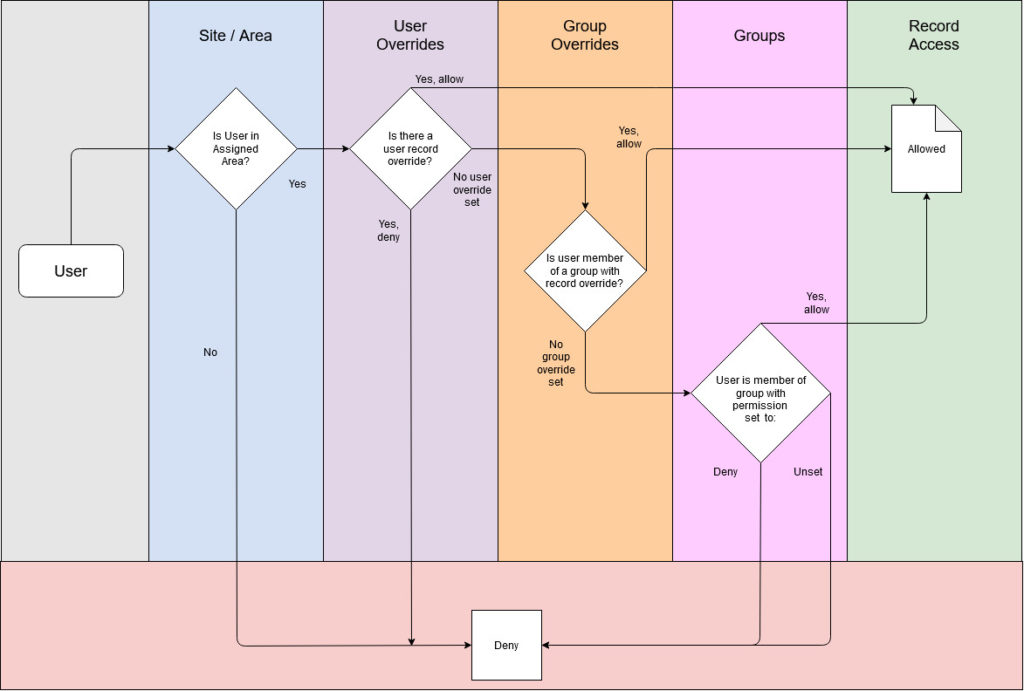
The infographic below shows each level of permissions in hierarchical order from left to right.
Outcome
You now understand:
✔ The different types of permissions in FlowLogic
✔ How Areas and Rights work together
✔ The role of Groups and Users
✔ How permissions apply to sections, forms, and records
✔ That field-level permissions offer granular control
✔ That permissions can evolve with your organisation
FlowLogic’s permission structure is designed to give you full control over visibility, editing rights, and system access — ensuring your data stays secure while remaining flexible for operational needs.